Client-Server Troubleshooting
When AGYNAMIX® Invoicer in Client mode cannot connect to a Host server, this page helps you systematically identify and fix the problem. The application includes a Verify Connection wizard (under Settings → Server → Verify Connection) that links here when a check step fails.
This page is also useful on its own — you can work through the checklists and explanations independently.
TL;DR — The three most common causes:
- Server not running – Make sure Host mode is enabled on the server machine (requires Ultimate license).
- Firewall blocking – Ports 8080 (HTTP) and 8443 (HTTPS) must be open on the server machine.
- Wrong token – The Host API token on the client must exactly match the token on the server.
Architecture Overview
In client-server mode, an AGYNAMIX® Invoicer instance in Client mode communicates over the network with a second instance in Host/Server mode. The Host is the authoritative machine — it holds the database and exposes an API. The Client connects to it.
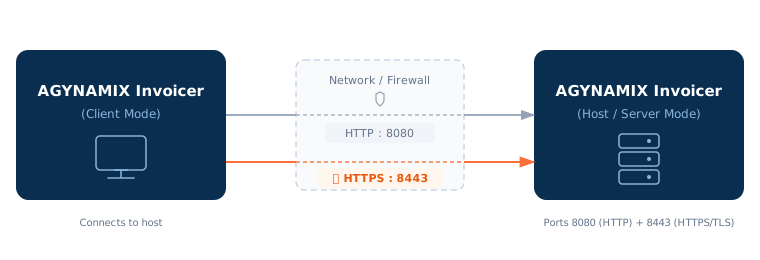
By default, the Host server listens on two ports simultaneously:
- Port 8080 – HTTP (unencrypted, used as fallback and for diagnostics)
- Port 8443 – HTTPS with TLS (encrypted connection, recommended)
The Client automatically prefers HTTPS and falls back to HTTP if TLS is not available.
What the Verify Connection Wizard Checks
The wizard runs seven checks in two steps:
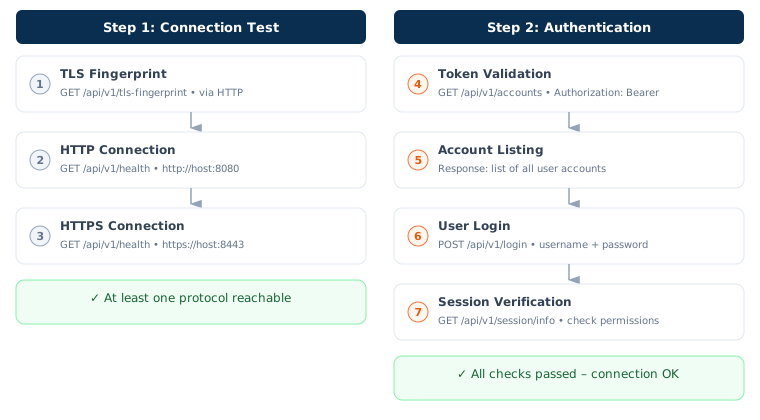
When a check fails, the wizard displays an error message and links to the matching section on this page.
Prerequisites
Before you start troubleshooting, verify these basics:
- ☐ The Host machine is running and AGYNAMIX® Invoicer is started.
- ☐ Host/Server mode is enabled (under Settings → Server). This requires an Ultimate license.
- ☐ You know the IP address or hostname of the server machine.
- ☐ The default ports have not been changed (HTTP: 8080, HTTPS: 8443) — or you know the custom ports.
- ☐ The Host API token is known and matches on both sides.
- ☐ At least one user account with a password set exists on the Host.
- ☐ Client and Host are on the same network (or connected via VPN).
Connection Errors
The following sections describe errors that occur during the Connection Test (Step 1) of the wizard.
Connection Refused
Wizard error message: Connection refused – the server may not be running or the port is wrong.
This means the Client machine can reach the Host machine on the network, but nothing is listening on the specified port. In practice, these are the most common causes:
What to check:
- Is the server running? Open AGYNAMIX® Invoicer on the Host machine and check under Settings → Server whether Host mode is active. The server status should show “Running”.
- Are the ports correct? Compare the port numbers in the wizard with the actual ports shown by the server. If you changed the ports, they must match.
- Firewall on the server machine: On Linux and Windows in particular, local firewalls can block access to ports 8080/8443 even when the server is running.
- Windows: Check Windows Defender Firewall → Advanced Settings → Inbound Rules. Create a rule for port 8080 and 8443 if needed.
- Linux: Check with
sudo ufw statusorsudo iptables -Lwhether the ports are open. - macOS: The built-in firewall usually only blocks incoming connections for unknown apps. Allow AGYNAMIX® Invoicer under System Settings → Network → Firewall.
- Test on the server machine first: Open a browser on the server machine and visit
http://127.0.0.1:8080/api/v1/health. If you see a JSON response with the server version, the server is running correctly. Alternatively, in a terminal:
If this works but the Client cannot connect from another machine, the problem is in the network or firewall.curl http://127.0.0.1:8080/api/v1/health
Tip: On the Client machine, you can perform the same check — open
http://<server-ip>:8080/api/v1/healthin a browser or run in a terminal:curl http://<server-ip>:8080/api/v1/healthFor HTTPS, test with
https://<server-ip>:8443/api/v1/health. The browser will warn that the connection is not secure — this is expected because the server uses a self-signed certificate. Click “Advanced” → “Proceed anyway” (the exact wording varies by browser) to open the page. If you see the JSON response, the HTTPS connection is working correctly.
Timeout
Wizard error message: Connection timed out – the server may be unreachable or a firewall is blocking the connection.
A timeout means the Client sent a request but received no response within 5 seconds. Unlike “Connection Refused”, no response comes back at all — the packet silently disappears in the network.
What to check:
- IP address correct? Make sure the server’s IP address is right. A typo sends packets to a non-existent address.
- Ping test: Test basic network connectivity with
ping <server-ip>. If the ping doesn’t get through, there’s a network or firewall issue. - Firewall with DROP rule: Some firewalls silently discard packets (DROP instead of REJECT). This causes timeouts instead of “Connection Refused”. Check the firewall rules on the server.
- Different subnets: If Client and Host are on different network segments (e.g., Wi-Fi vs. wired LAN), a router or network isolation may prevent access.
- VPN connection active? If you’re connecting over VPN, make sure the VPN connection is up and traffic is routed to the Host’s network.
Tip: Does HTTP (port 8080) work but HTTPS (port 8443) times out? Then the firewall is probably only blocking the HTTPS port. Open both ports.
TLS Handshake Failed
Wizard error message: TLS handshake failed – the server may not support HTTPS on this port.
This error occurs when the Client tries to establish an encrypted HTTPS connection but the TLS handshake fails. This is almost always a port configuration issue.
What to check:
- HTTPS on the right port? The most common mistake: you entered the HTTP port (8080) in the HTTPS field or vice versa. HTTP and HTTPS are different protocols — they run on separate ports.
- HTTP (default): Port 8080
- HTTPS (default): Port 8443
- Does HTTP work? Check whether HTTP (port 8080) works first. If it does, the server is reachable and the problem is only with TLS configuration.
- TLS certificate: The server automatically creates a self-signed TLS certificate on first start. If the certificate is corrupted or missing, the handshake fails. In this case, restart the server — it will generate a new certificate if needed.
Good to know: AGYNAMIX® Invoicer uses a self-signed certificate (Trust-On-First-Use model). This is normal and secure for use on a local network. The Client accepts this certificate automatically.
DNS Resolution Failed
Wizard error message: DNS resolution failed – the server address could not be resolved.
This means the entered hostname could not be resolved to an IP address.
What to check:
- Typo in hostname? Check the spelling. A
servre.localinstead ofserver.localis enough to cause this. - Use IP address: Instead of a hostname, you can enter the server’s IP address directly (e.g.,
192.168.1.10). This bypasses DNS issues entirely. - DNS server reachable? Check whether DNS works at all:
nslookup <hostname>orping <hostname>. - mDNS / .local addresses: Hostnames like
mycomputer.localonly work when mDNS (Bonjour/Avahi) is active on the network. In some corporate networks, this is disabled.
Recommendation: For the most reliable connection, use the server’s direct IP address. Hostnames can change or may not be resolvable on every network.
Unknown Error
Wizard error message: An unexpected error occurred.
This error appears when none of the known error patterns were matched.
What to check:
- View error details: Click the error icon next to the failed check in the wizard. The dialog shows the technical error message, which can help with analysis.
- Check server version: Make sure Client and Host are using the same version of AGYNAMIX® Invoicer. Version differences can cause unexpected errors.
- Restart the server: A server restart can resolve transient issues.
- Check logs: The AGYNAMIX® Invoicer log file on the server machine may contain further details.
HTTP Status Code Errors
The following errors occur when the server is reachable and responds, but rejects the request. These errors typically appear during the Authentication step (Step 2) of the wizard.
Error 401 — Unauthorized
TL;DR: The Host API token or credentials are wrong. Compare the token and password with the server settings.
A 401 error means the server rejected the authorization. This can have two different causes:
Token validation fails (“Token Validation” step):
The Host API token you entered in the wizard doesn’t match the token on the server. The token is sent with every API request as authorization — if it’s wrong, the very first check fails.
- Open the settings on the server machine (Settings → Server) and copy the Host API token.
- Enter this token exactly on the client. Watch out for invisible whitespace at the beginning or end.
User login fails (“User Login” step):
Username or password is incorrect.
- Check that the username is exactly right (case-sensitive).
- Check that a password has actually been set for this user on the Host.
- Was the password recently changed? The wizard uses stored credentials — these need to be updated.
Error 403 — Forbidden
TL;DR: The user account may be disabled or lacks sufficient permissions.
A 403 error means the authorization is valid, but access is still denied.
What to check:
- User account active? Check on the server machine whether the user account is active and has not been disabled or deleted.
- Sufficient permissions? The user needs at least basic read permissions to use Client mode. Check the role settings on the server.
Error 404 — Not Found
TL;DR: Version mismatch between Client and Server. Update both to the same version.
A 404 error on the API means the server doesn’t recognize the requested endpoint. This typically happens when Client and Server are running different versions and the API endpoints have changed.
What to check:
- Compare versions: Make sure Client and Host are running exactly the same version. You can find the version under Help → About AGYNAMIX® Invoicer.
- Update both: If the versions differ, update both instances to the latest version.
Error 500 — Internal Server Error
TL;DR: Problem on the server side. Restart the server and check the logs.
A 500 error indicates an unexpected problem on the server.
What to check:
- Restart the server: A restart of AGYNAMIX® Invoicer on the server machine often fixes transient issues.
- Check disk space: If the disk on the server is full, the database can no longer operate.
- Check logs: The server logs contain the full error message including stack trace.
Authentication Details
In the second step of the wizard, four checks are performed. Here are the details for each one:
Token Validation
The client sends the Host API token as an Authorization: Bearer header to the server. If the token is valid, the server responds with the list of user accounts.
Common issues:
- Token was changed on the server but not updated on the client.
- Invisible characters (spaces, line breaks) at the beginning or end of the token.
- The token was copied from an email or messenger and got truncated.
Account Listing
After successful token validation, the wizard shows the number of user accounts available on the server. If no accounts are found, users must first be created on the server.
User Login
The client sends username and password to the server. On success, it receives a temporary session token.
Common issues:
- The user doesn’t exist on the server → must be created first.
- No password has been set for the user → set a password in user management on the server.
- Typo in username or password.
Session Verification
Using the session token, the client checks whether the session is valid and what permissions the user has. The wizard displays the number of available permissions.
Permission note: If the wizard shows a warning that the user may not have sufficient permissions, it means basic read permissions are missing (e.g., read documents, read customers). Client mode only works with limited functionality if these are missing. Adjust the role settings on the server.
Session timeout: Sessions expire after 5 minutes of inactivity and have a maximum lifetime of 8 hours. In normal operation, the client keeps the session alive automatically with heartbeats. In the wizard, brief inactivity can cause expiry — simply re-running the check is sufficient.
TLS and Certificates
AGYNAMIX® Invoicer uses TLS encryption (HTTPS on port 8443) by default for client-server communication.
How the Certificate Works
When the Host server starts for the first time, it automatically creates a self-signed TLS certificate. This certificate is stored locally on the server machine. Unlike websites on the internet, there is no external certificate authority — this is normal and sufficient for use on a local network.
TLS Fingerprint
The server exposes its TLS fingerprint via an unencrypted HTTP endpoint (/api/v1/tls-fingerprint). The wizard displays this fingerprint so you can verify it against the server if needed. In normal operation, the client handles this automatically.
Certificate Changes
If the TLS fingerprint changes (e.g., after reinstalling the server or regenerating the certificate), the client shows a warning. In this case, you need to confirm the new certificate. This is a security measure — it ensures you’re aware that the server’s identity has changed.
General Tips
Finding the Server’s IP Address
- Windows: Open a command prompt and type
ipconfig. Look for the IPv4 address of the active network adapter. - macOS: Open System Settings → Network. The IP address is shown for the active adapter.
- Linux: Type
ip addrorhostname -Iin the terminal.
Testing on the Same Network
Before setting up more complex scenarios (VPN, port forwarding), always test the connection on the same local network first. This simplifies troubleshooting considerably.
Headless Server Mode
AGYNAMIX® Invoicer can also be started as a dedicated server without a graphical interface. This is useful when the server machine has no display. See the documentation for details.
Keeping Software Versions in Sync
Client and Host should always use the same version of AGYNAMIX® Invoicer. When updating, upgrade both sides at the same time to avoid compatibility issues.
Note: This page is a technical aid and describes the state of the software at the time of publication. For persistent issues, contact support.